

Documentation Index
Fetch the complete documentation index at: https://docs.knotie-ai.pro/llms.txt
Use this file to discover all available pages before exploring further.
What AI Credit Management is for
The AI Credit Management tab allows you to manage customer credits when using AI Credit-based pricing instead of traditional dollar pricing. Use this when:- Customer pays using credits instead of invoices
- You want to control usage limits
- You offer prepaid credit packages
Where to find it
- Go to Customer List.
- Select a customer.
- Click Manage.
- Go to the Credits tab.
Enable AI Credits for a customer
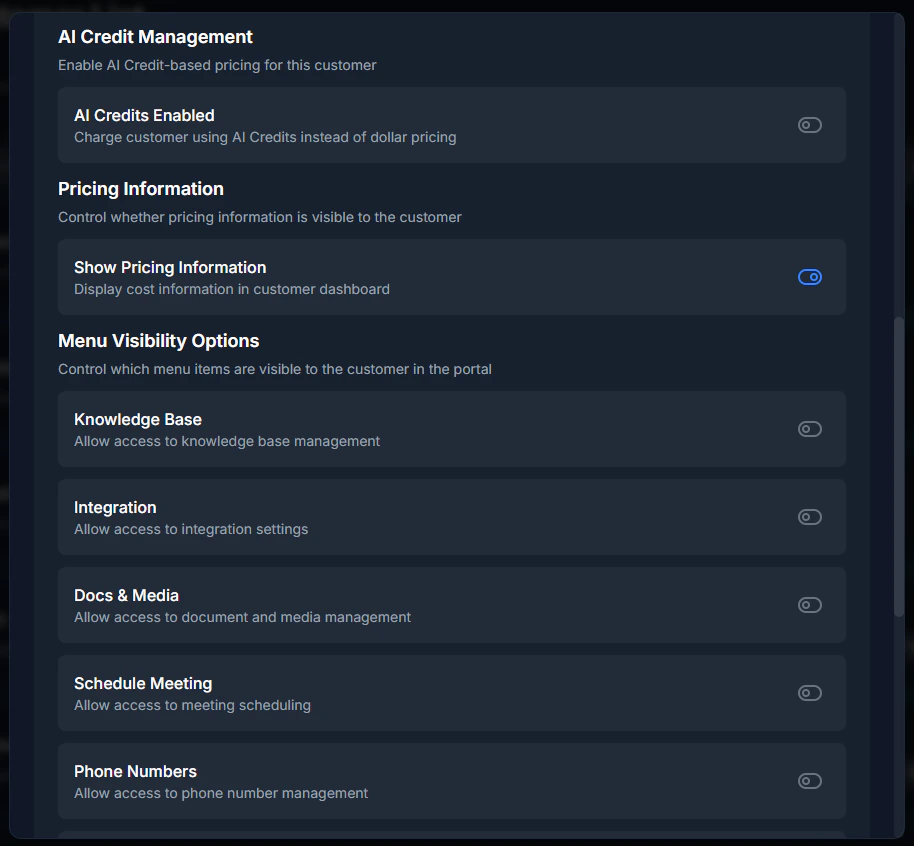
Before managing credits, you must enable AI Credits for the customer:- Open the customer’s Manage modal.
- Go to the Features & Add-ons tab.
- Find AI Credit Management section.
- Toggle AI Credits Enabled to ON.
- Configure credit settings:
- Credit price per minute – How many credits per minute of usage
- Grace period – Seconds before blocking after credits run out
- Low credit threshold – Send alerts when balance reaches this amount
Add credits to a customer
Manual credit addition
- Open the Credits tab in the customer’s Manage modal.
- Click Add Credits.
- Enter the amount of credits to add.
- Add a note (e.g., “Monthly package - 1000 credits”).
- Click Confirm.
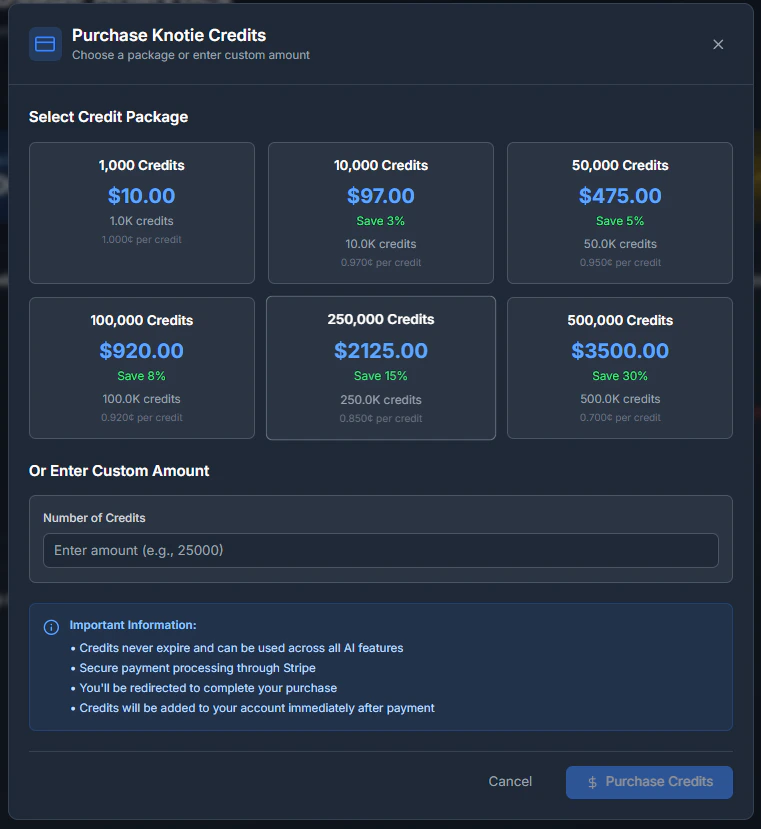
Quick Buy credits
You can also add credits from the Billing tab:- Go to the Billing tab.
- Find the Quick Buy section.
- Select Knotie Credits.
- Choose the amount.
- Complete the purchase.
Deduct credits from a customer
You may need to deduct credits for:- Refunds
- Corrections
- Manual adjustments
How to deduct credits
- Open the Credits tab in the customer’s Manage modal.
- Click Deduct Credits.
- Enter the amount to deduct.
- Add a reason (e.g., “Refund for failed calls”).
- Click Confirm.
View credit history
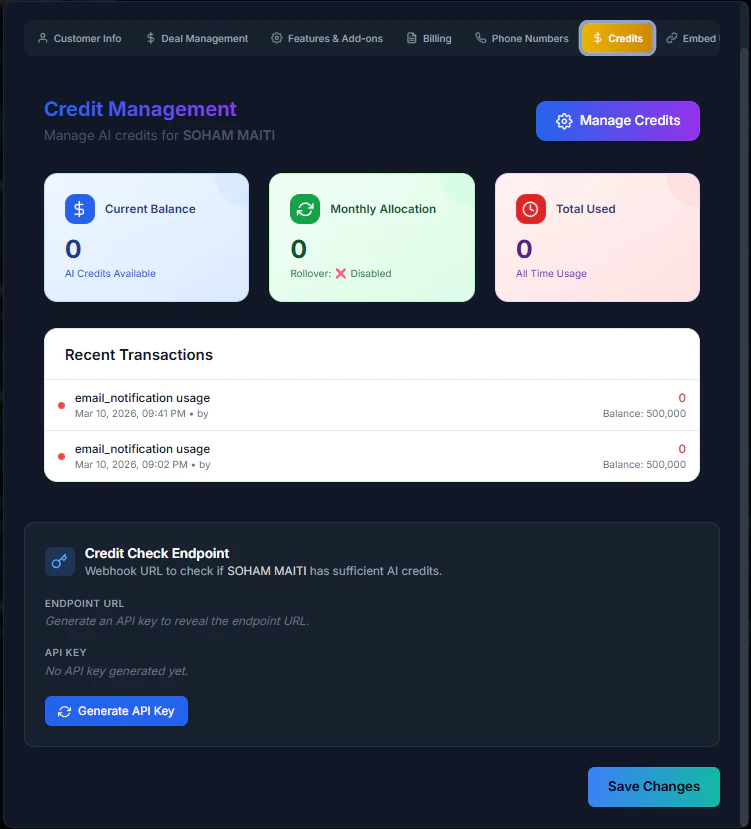
Track all credit transactions for a customer:- Open the Credits tab.
- View the transaction history table.
- See:
- Type – Added, Deducted, Used
- Amount – Credits involved
- Balance – Balance after transaction
- Note – Description of transaction
- Date – When it occurred
Check customer credit balance
View the current balance at the top of the Credits tab:- Current Balance – Total credits available
- Last Updated – When balance was last modified
Low credit alerts
When enabled, customers receive email notifications when their balance is low.Configure low credit alerts
- Go to Features & Add-ons tab.
- Find Low Credit Notifications section.
- Toggle Enable Low Credit Alerts to ON.
- Set the threshold (e.g., 100 credits).
- Save.
Credit pricing vs dollar pricing
When to use AI Credits
- Prepaid packages – Customers buy credits upfront
- Usage control – Limit how much a customer can use
- Flexible pricing – Different rates for different customers
When to use dollar pricing
- Traditional billing – Monthly invoices
- Enterprise customers – Who prefer invoices over credits
- Unlimited plans – No usage caps
Credit usage tracking
Credits are consumed based on:- Call minutes – Charged per minute according to credit price
- AI processing – LLM, STT, TTS costs converted to credits
- Tool calls – Each API/tool call consumes credits (typically 0.03 credits per call)
Best practices
- Set appropriate thresholds – Alert customers before they run out completely.
- Use grace periods – Give customers time to top up (e.g., 300 seconds grace).
- Document transactions – Always add notes when adding/deducting credits.
- Monitor usage patterns – Use analytics to identify unusual consumption.
- Offer packages – Bundle credits into packages (e.g., 1000, 5000, 10000).
Troubleshooting
- Cannot add credits – Ensure AI Credits are enabled for the customer.
- Credits not deducted during usage – Check that credit price per minute is configured.
- Low credit alerts not sent – Verify email domain is configured and alerts are enabled.
- Balance shows incorrect amount – Check credit history for unauthorized transactions.
Related pages
- Billing for a Customer – Quick Buy credits
- Features & Add-ons – Enable AI Credits
- Credits Management – Partner-level credit management