

Documentation Index
Fetch the complete documentation index at: https://docs.knotie-ai.pro/llms.txt
Use this file to discover all available pages before exploring further.
Overview
This guide walks you through logging into the Knotie AI Pro Partner Portal as a new partner. By the end, you’ll be on your dashboard with full access to the onboarding checklist. Time to complete: ~5 minutes for first login (password change + optional MFA).Step 1 — Navigate to Partner Login
Go to the partner login page: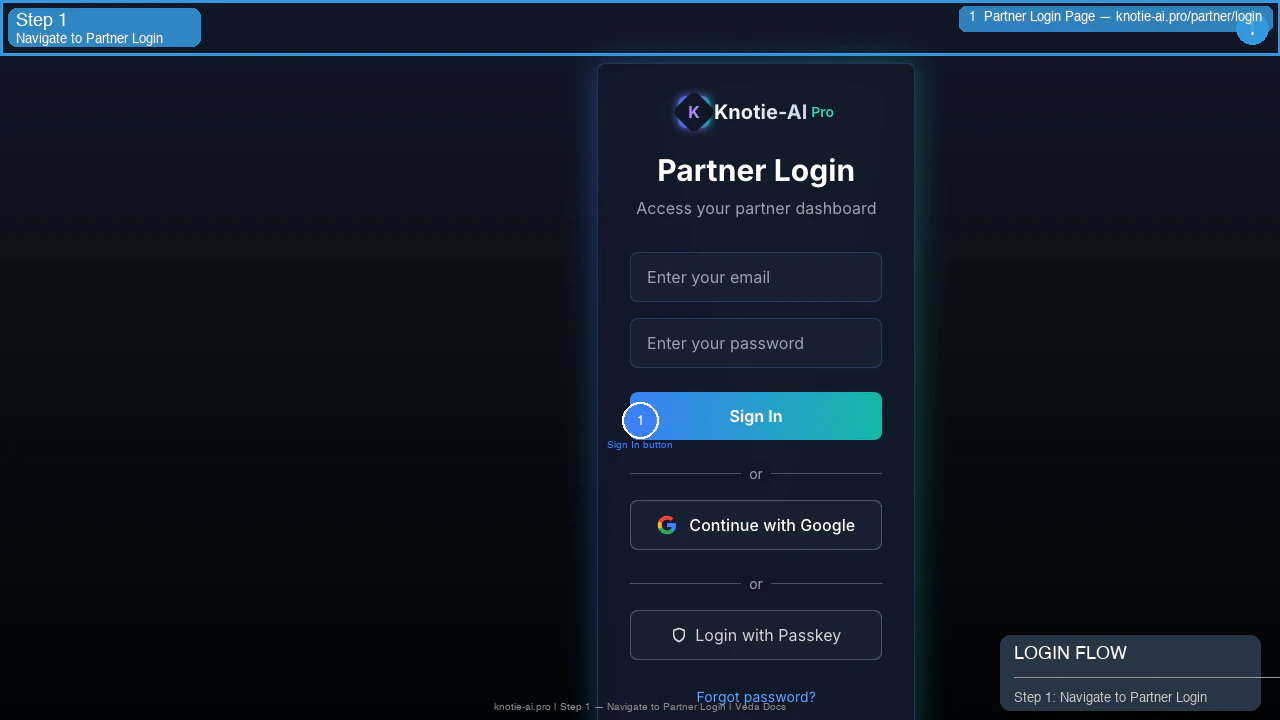
- Email and password fields
- Sign In button (primary CTA)
- “Continue with Google” option (SSO)
- “Login with Passkey” option (FIDO2/WebAuthn)
- “Forgot password?” link
Step 2 — Enter Credentials
Enter the email address and temporary password provided in your welcome email.- Email: your partner email (e.g.
veda@kno2gether.com) - Password: the temporary password from the welcome email
First login only: If this is your first time logging in, you’ll be prompted to change your password immediately after this step.
Step 3 — Set a New Password (First Login Only)
If this is your first login, you’ll see the Change Password screen: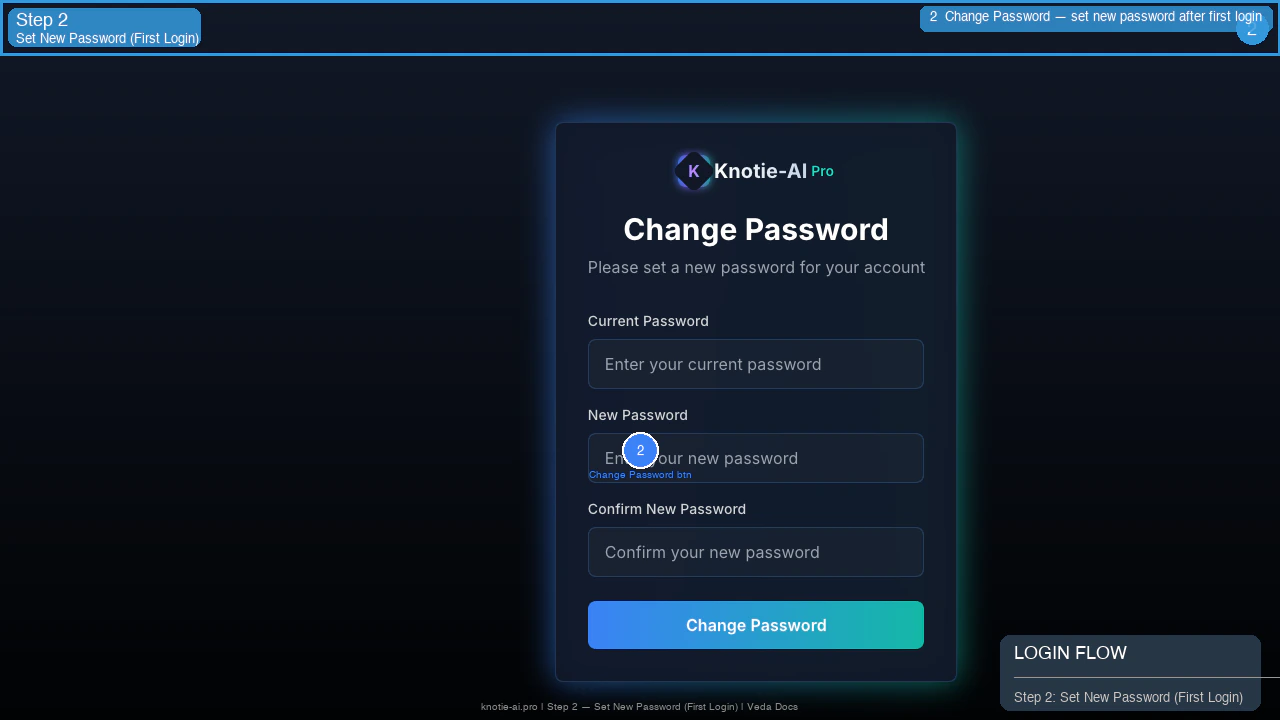
- Current Password — enter your temporary password
- New Password — create a strong password (min. 8 characters, mixed case, numbers)
- Confirm New Password — re-enter your new password
Step 4 — MFA Setup Prompt (Optional)
After your first password change, you may see an MFA setup prompt: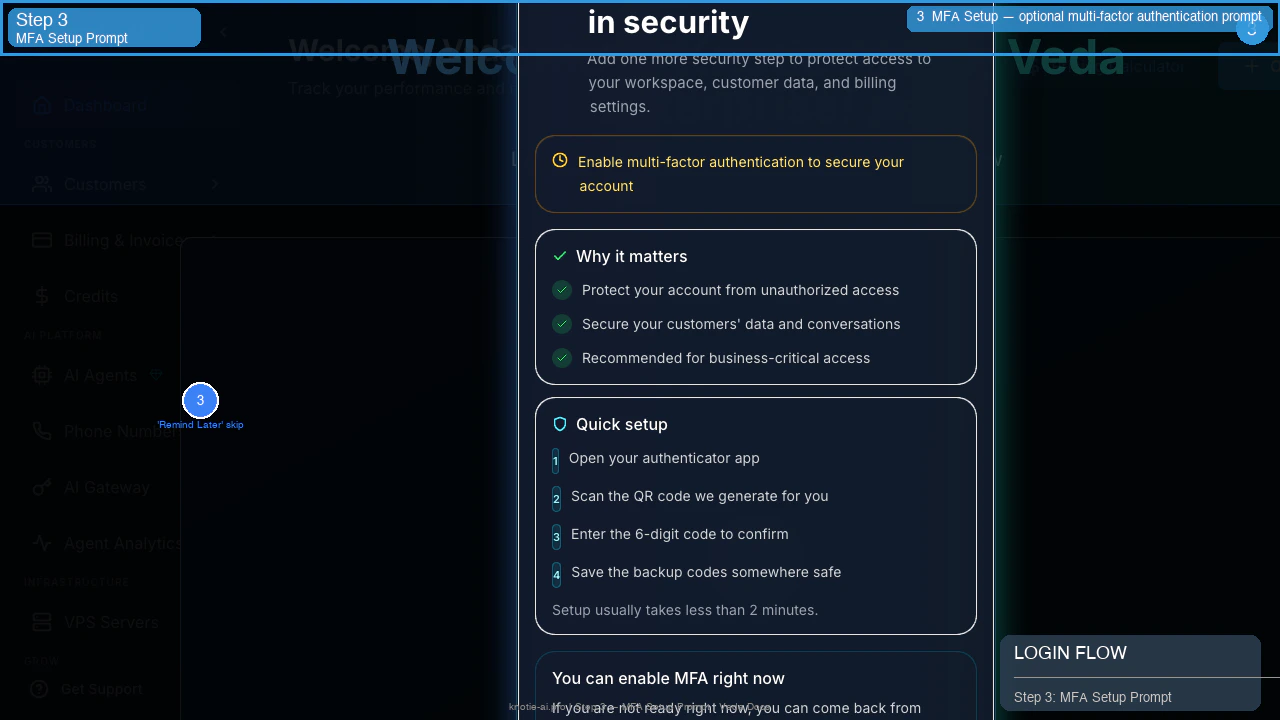
- Click “Remind Later”
Step 5 — Welcome / Video Tutorial Screen
After login you’ll see a welcome screen with a quick platform overview: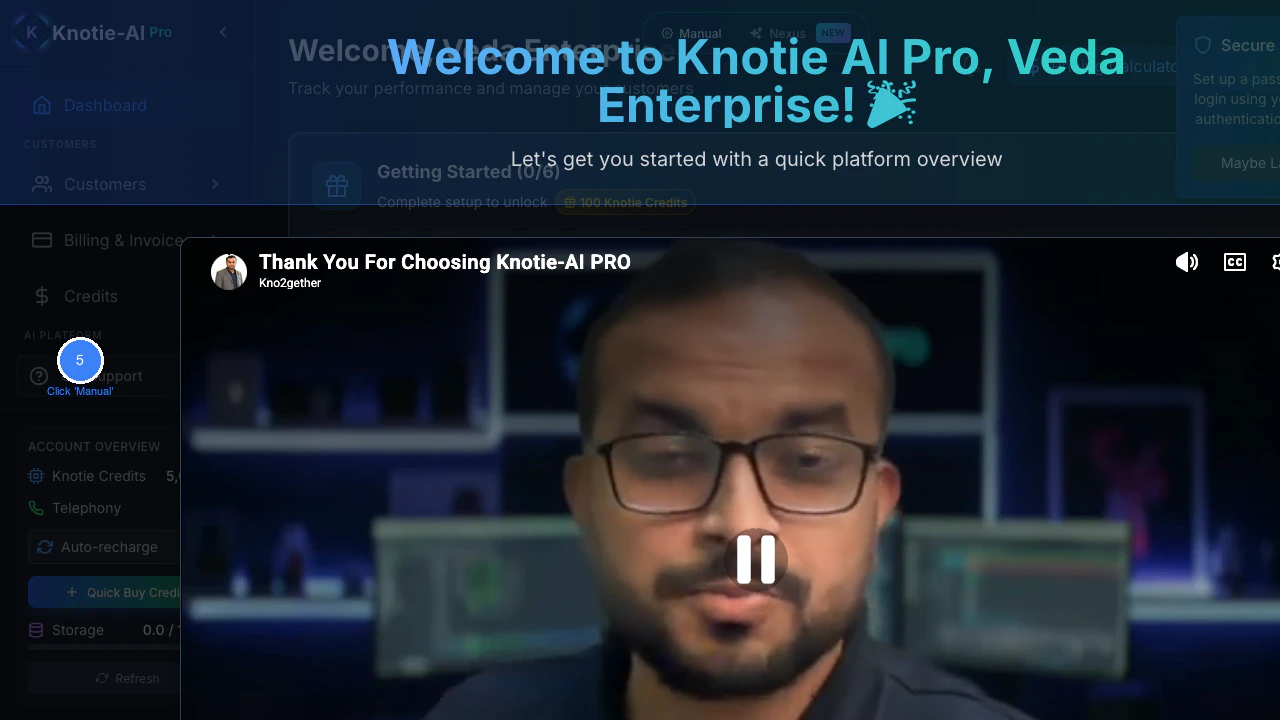
- Manual — skip the video walkthrough and go straight to the dashboard (recommended for returning users)
- Nexus New — explore a new feature (Nexus)
- Watch Tutorial — play an interactive guided tour
Step 6 — Partner Dashboard & 6-Step Onboarding Checklist
You’re now on the Partner Dashboard: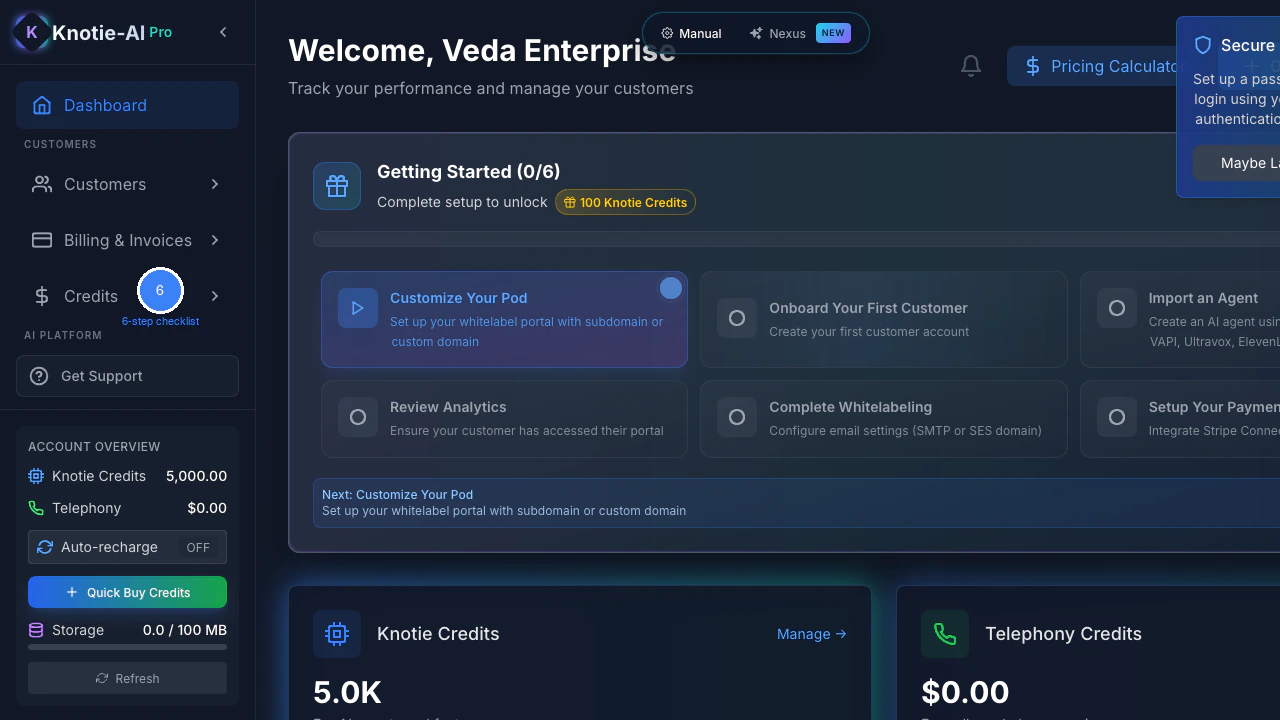
Getting Started Widget
The Getting Started (0/6) widget is your onboarding guide. Complete all 6 steps to unlock 100 Knotie Credits as a reward.| # | Step | What to do |
|---|---|---|
| 1 | Customize Your Pod | Set up your whitelabel portal with subdomain or custom domain |
| 2 | Onboard Your First Customer | Create your first customer account via Quick Onboard |
| 3 | Import an Agent | Create or import an AI agent (Retell, VAPI, Ultravox, ElevenLabs, GHL) |
| 4 | Review Analytics | Confirm your customer has accessed their portal |
| 5 | Complete Whitelabeling | Configure email settings (SMTP or SES domain) |
| 6 | Setup Your Payments | Integrate your Stripe Connect account |
Progress is saved automatically — you can complete the checklist across multiple sessions. The checklist reappears every 7 days if you haven’t completed it.
Quick Actions (Top of Dashboard)
- Pricing Calculator — estimate pricing for new customers
- Onboard New Customer — start the customer onboarding flow
Account Overview (Top-Right)
- Knotie Credits — your current balance (5,000 credits on signup)
- Telephony — call spend to date
- Auto-recharge — toggle auto-recharge settings
- Quick Buy Credits — purchase more credits
- Storage — portal storage used vs. allocated
Credential Reference
| Field | Where to find |
|---|---|
| Partner email | Your registered partner email (e.g. veda@kno2gether.com) |
| Temporary password | Sent in the welcome email from welcome@knotie-ai.pro |
| Dashboard URL | https://knotie-ai.pro/partner/dashboard |
| Support | Click Get Support in the sidebar or email partners@knotie-ai.pro |
Troubleshooting
“Invalid credentials” on login- Check your email spelling — use the address from your welcome email
- Your temporary password expires after first use — must be changed immediately
- If you forgot your password, use “Forgot password?” to reset
- Use an authenticator app (Google Authenticator, Authy, etc.)
- Save the backup codes in a secure location
- You can skip and enable MFA later from Settings → Security
- This is a loading screen — wait a few seconds
- If it persists more than 30s, refresh the page
- Progress saves automatically after each step
- If a step doesn’t save, try completing it again or refresh the dashboard